
Readlee is introducing the ability for students to view their own results! Once a student turns in their assignment, a new button will appear titled "View Your Results."
Toggle Student Submission Viewing On/Off
Differences Between Student and Teacher View
Toggle Student Submission Viewing On/Off
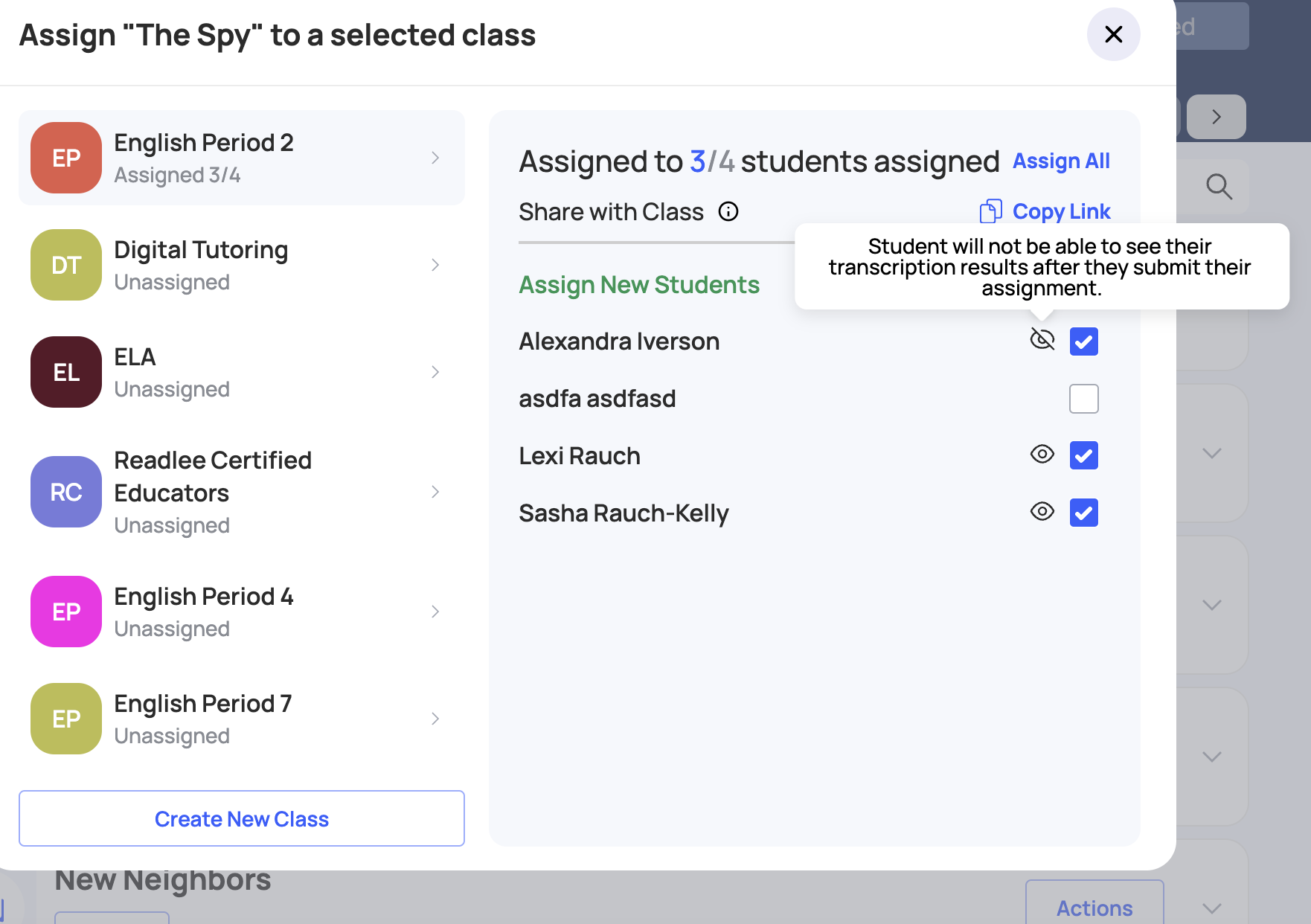
After creating an assignment, during the assigning process, teachers can choose which students will see their transcript with errors marked ( ) and which will see the stats but not the transcript (
 ).
Differences between teacher and student submission view
This results view is nearly identical to the submission view that teachers receive, but with a couple of updates.
- Students will not see substitutions on their transcript (the blue text)
- Students will only see the Basic Stats (even if the teacher has Readlee Ultimate access)
Bonus: Students can also report suggested corrections to their transcript!
- Students can submit reports if they believe we marked a word incorrectly.
Once clicked, the word will change color to let the students know we received their report.
At this time, this will not impact their results, but we will be reviewing disputes closely to get more data on how to move our product forward.
Please reach out to support@readlee.com if you would like to participate in the beta!